$$PLAIN_TEXT_PREVIEW$$
Live Your Story with Stacy Julian

Leveraging the Power
of Smart Albums

Hello đź‘‹

I’m looking forward to our Q&A today and I’m planning to show you how I use Smart Albums to fine tune my workflow on my iPhone—AND—the first thing to know is that Smart Albums are not available in iOS. This means you can’t create a Smart Album on your iPhone or iPad, but … once you have one created on a Mac, you can absolutely leverage its filtering prowess to help you manage better on mobile devices.

I do know, from our survey that not everyone in this course is fully Mac-based, so this feature is not available to you if you, in addition to an iPhone do not also have a MacBook or iMac.

Creating a Smart Album

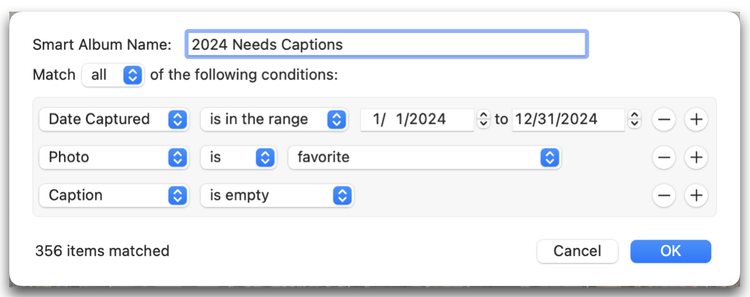
I want to see ALL my favorited images from 2024 that do not yet have details added in the caption field, so I set the following parameters:

  • Photos taken during 2024

  • Photos are my highlights 🤍

  • Caption is currently empty

Below is the image showing these filtering conditions …

Smart Albums automatically aggregate images based on criteria that you set, so that you can really zero in on specific conditions you want to see and work with!

In this image, the upper arrow shows that my Smart Album has been created. Remember, that these albums are not synced with iCloud, so I will NOT be able to see this album and its images on my iPhone …

But, I can sync and see regular albums, which means, IF I create a new folder (see lower arrow) called “Workflow” and a new album inside that folder, for these “Needs a Caption” images—AND—I then select and copy images from the Smart Album to the new album, I will be able to work with these images on my iPhone.

I am planning to demonstrate this to you during our LIVE today, but it’s tricky enough that I also wanted to spell it out for you here—first!

🎶 Here is my NEW, temporary album on my iPhone. Inside are favorited images taken during 2024 that do not yet have details in the caption field. Now, I can work through them, one at a time and then remove them from the album.

Bring your questions about this or anything else to our LIVE today!


Rock Your Scroll course login

To enter the Rock Your Scroll 2025 course page, simply click the orange button below and use the password: JOYonmyphone

Please NOTE: THE J-O-Y are capital letters and the rest are lower case.

 Rock Your Scroll Login 

Password: JOYonmyphone

If you need to log in again, click on the Courses tab on my website, www.stacyjulian.com. Scroll down to where all the course logins are located (look for circles!) and click on Rock Your Scroll 2025. Then enter the password and ready to rock!

 
Live Your Story with Stacy Julian
pinterest facebook facebook instagram

Stacy Julian LLC, 21601 E. Mill River Ln, Liberty Lake, WA 99019, United States

Unsubscribe